
This guide covers how to update the internal PU inside an iPM generator
Which solves most software related E-17 and E-151 Errors
Purpose:
This update can resolve the following generator errors:
E17 – Self-Test Failure/Internal Failure
E151 – Low Input Voltage/Internal Failure
These issues are often software-related, but in some cases may be due to internal hardware faults.
What You’ll Need
Empty USB storage key – See specs in attached document "USB Formatting.pdf"
PU update file iPM100/200 – Generator update file, attached .HEX file
This instruction guide
All files can be downloaded from this solution article. Files are found in the bottom of the page.
Steps to Update
Prepare the USB key - must meet spec´s to be recognised by the iPM generator
Download all required files.
Follow the instructions in this guide
Check if the update is successful.
Instructions guide
Make sure that the USB drive is formatted as in guide attached.
On the UBS drive, place the PU file downloaded from this page.
Place the PU.hex file in the root of the drive.
No other files or folders should be on the USB drive other than this.
Updating Firmware
While in normal operation screen, Push and hold the following buttons in this sequence.
O button + Arrow button Down + Arrow button Left + I button.
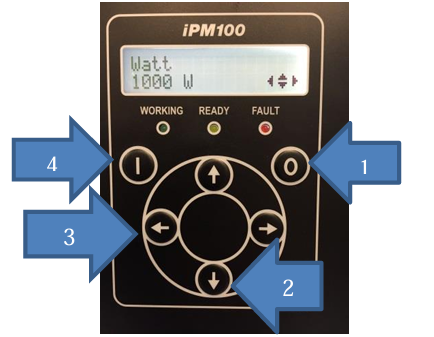
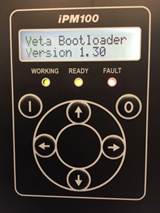
Display will show “Veta Bootloader Version x.xx” (The x.xx is the version number)
Insert the USB drive into the side of the iPM100 module.
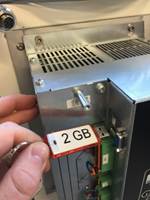
- The display will show “PU2-xxx.HEX” “Want to upload?” xxx is the version number.
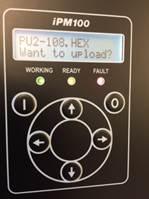
To Upload new “PU2-xxx.HEX” Press and hold the Arrow Down button, then push once on the I button, then release both buttons.
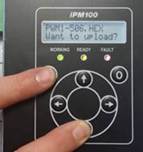
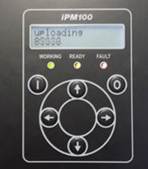
The display will show “Uploading” and then show a incrementing number
When done the display will show “Programming done”.
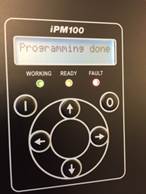
Remove the USB drive from the iPM100
Push both Arrow button Down + Arrow button Right at the same time to restart the main program.
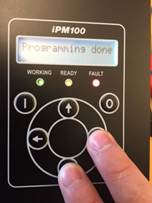
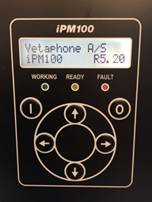
Display will show “Vetaphone A/S iPM100 Rx.xx” (The x.xx value is the firmware version.) for a few second and then return to normal operation screen.
Firmware update is now complete.
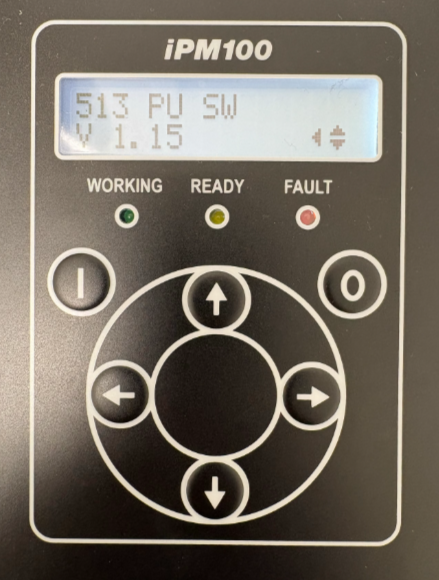
Check if the installation was successful by entering the PU version page. Press the following buttons.
Arrow Right button -Arrow Right button
Arrow Down button -Arrow Down button - Arrow Down button - Arrow Down button
Arrow Right button - Arrow Right button
Arrow Down button -Arrow Down button
The software version read on the display, should be the same as the filename of the downloaded HEX fil.
? Need Help?
If you encounter issues during the update, please contact Vetaphone Support via support@vetaphone.com